Click for detailed status
MobaXterm
MobaXterm is a powerful terminal emulator for Windows that provides SSH connectivity, X11 server, and many other networking tools in a single application. This guide shows how to use MobaXterm to connect to the Euler cluster.
Basic login
Creating an SSH Session
Start MobaXterm and create a session:

Select an SSH session and enter the Euler hostname (euler.ethz.ch):
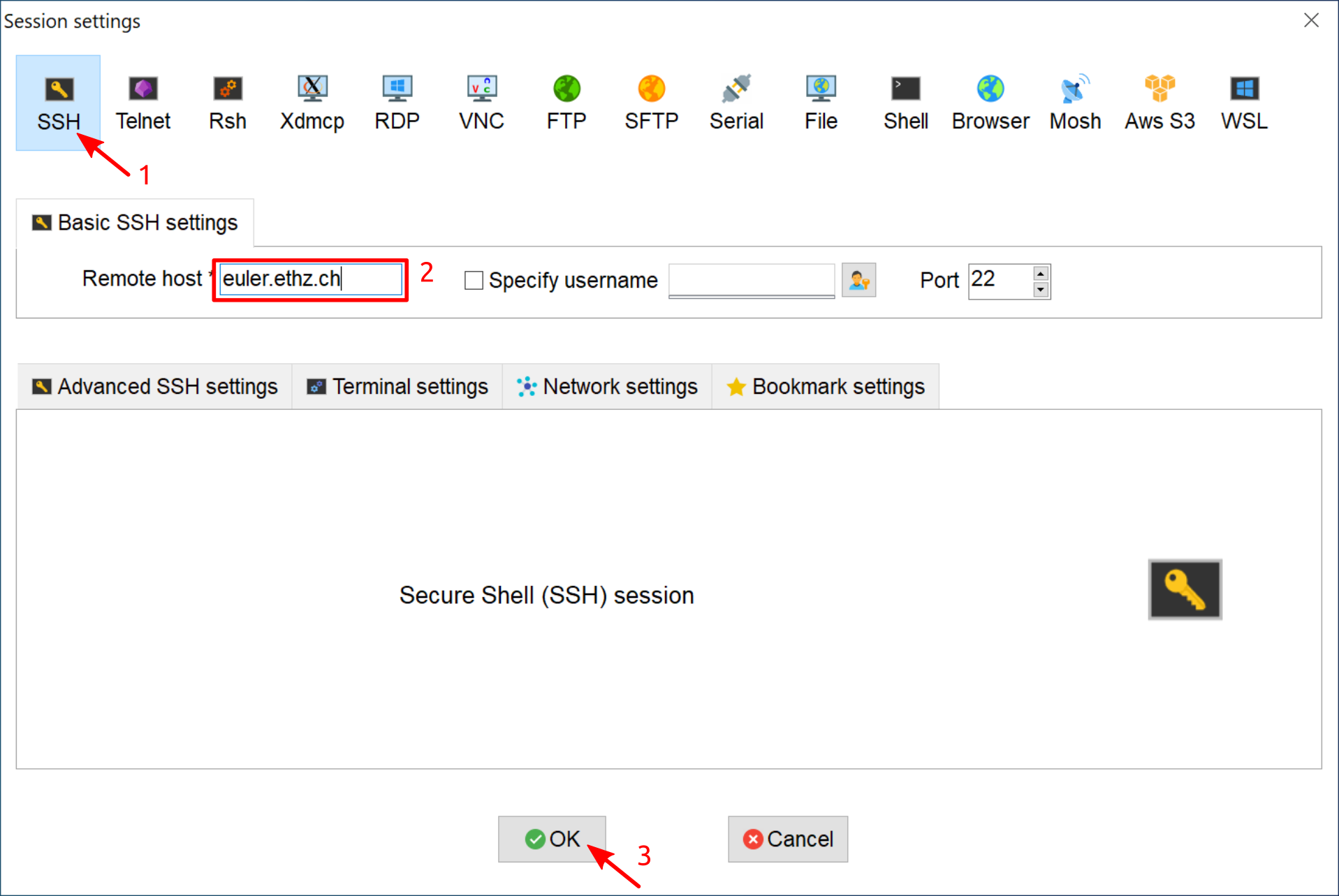
This session is saved automatically under the hostname.
Logging in
Enter your ETH account username and password:

Upon a successful login, you can see the welcome banner and links to this Wiki, Smartdesk and cluster support:

Session settings
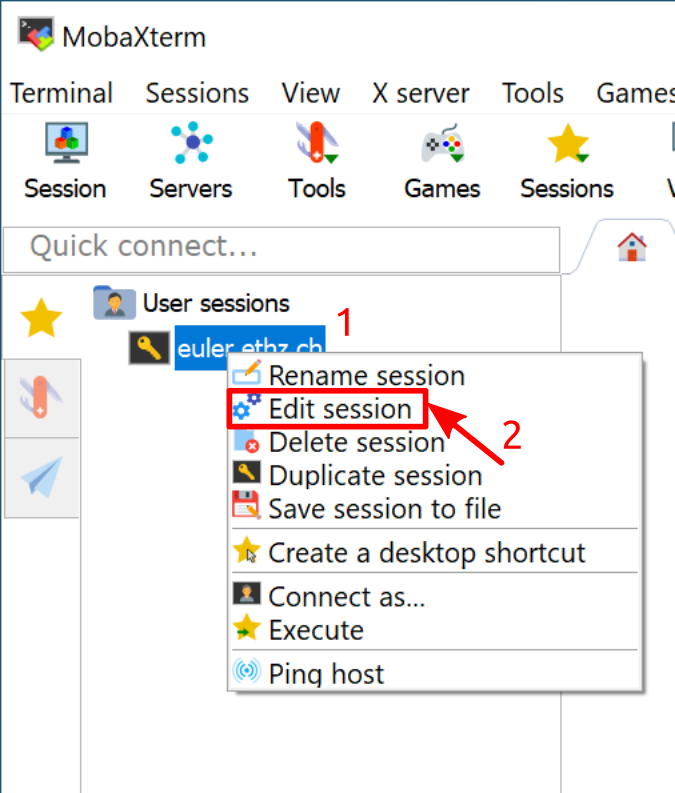
Edit session:
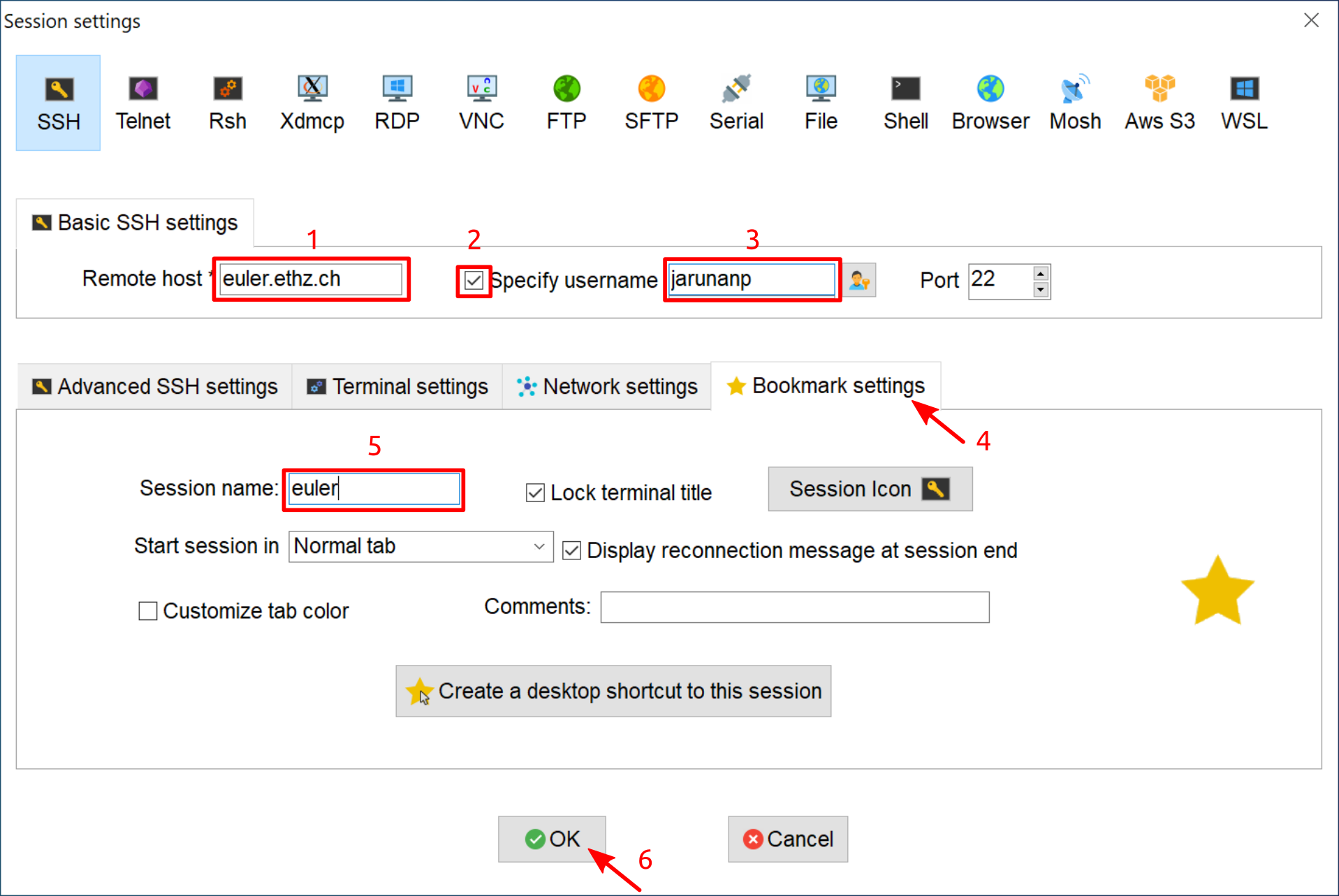
You can specify username and session name:
SSH Keys
Create SSH keys
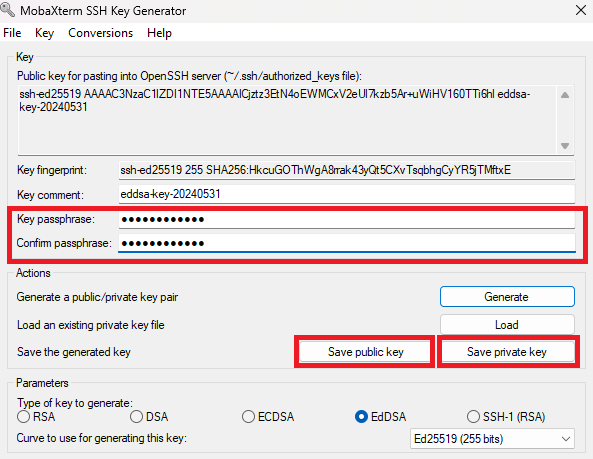
Start MobaKeyGen:

Select ed25519 algorithm and generate SSH keys:

Enter a passphrase, and save the public key (optional) and the private key (compulsory):
Add the private key to a session
Edit session:
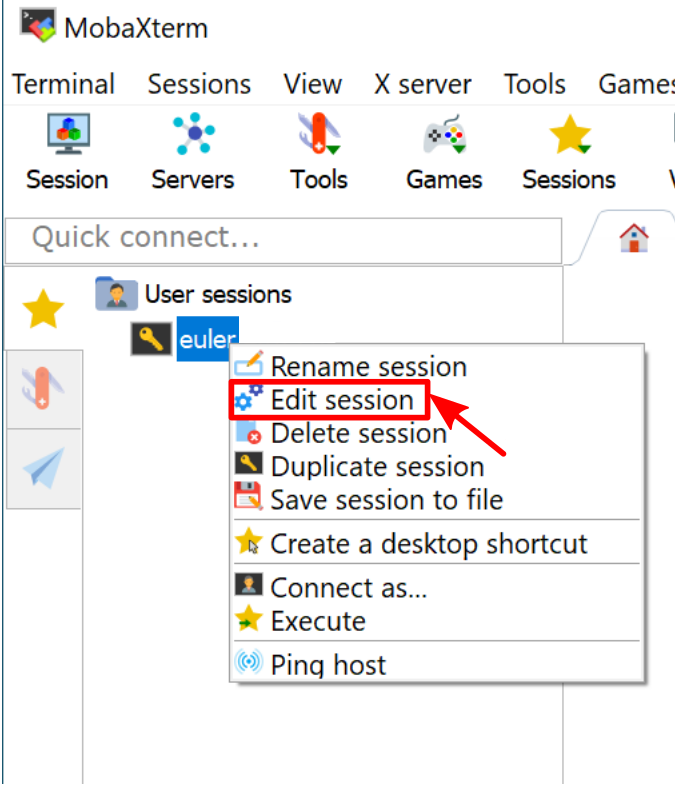
Enable using private key and select the private key file:

Copy the public key to the cluster
Log in to the cluster and open the file $HOME/.ssh/authorized_keys with a text editor.
This file should have the reading and writing permission only for you, the owner of the file (-rw-------). Otherwise, you can change the permission with the command:
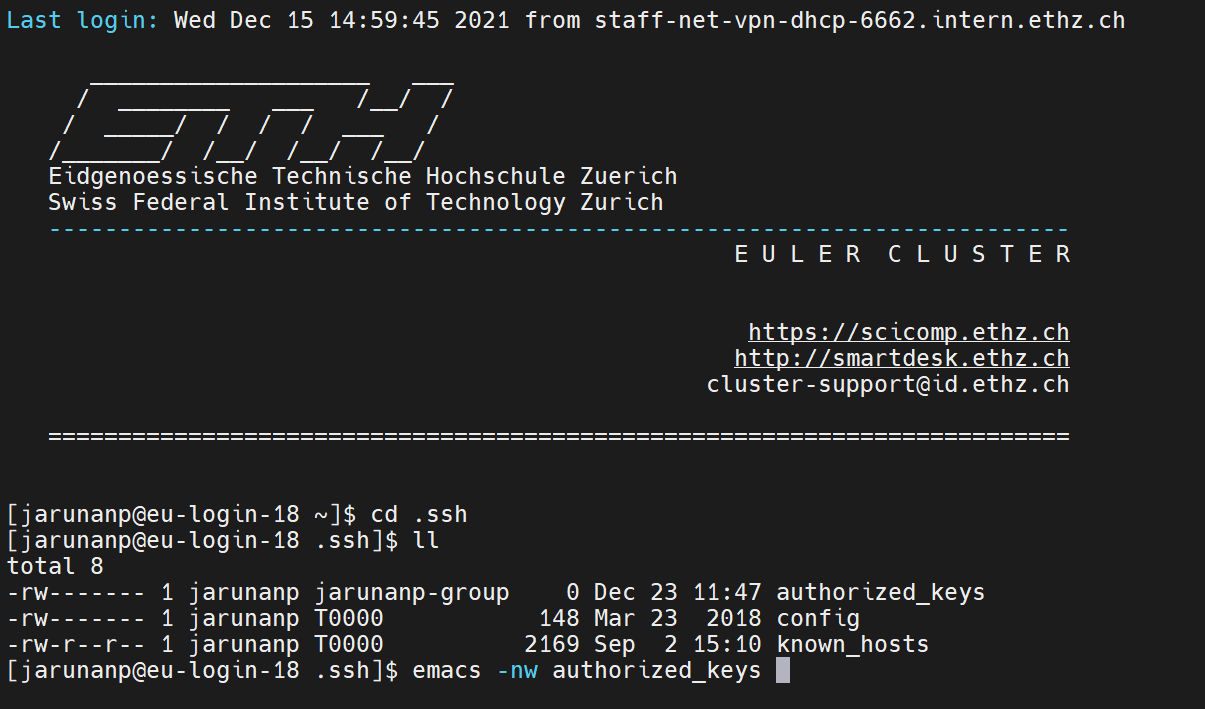
Copy the public key to the file $HOME/.ssh/authorized_keys on the cluster.
The next time you start the session, enter the passphrase to log in to the cluster:

Add SSH key to MobAgent for auto login
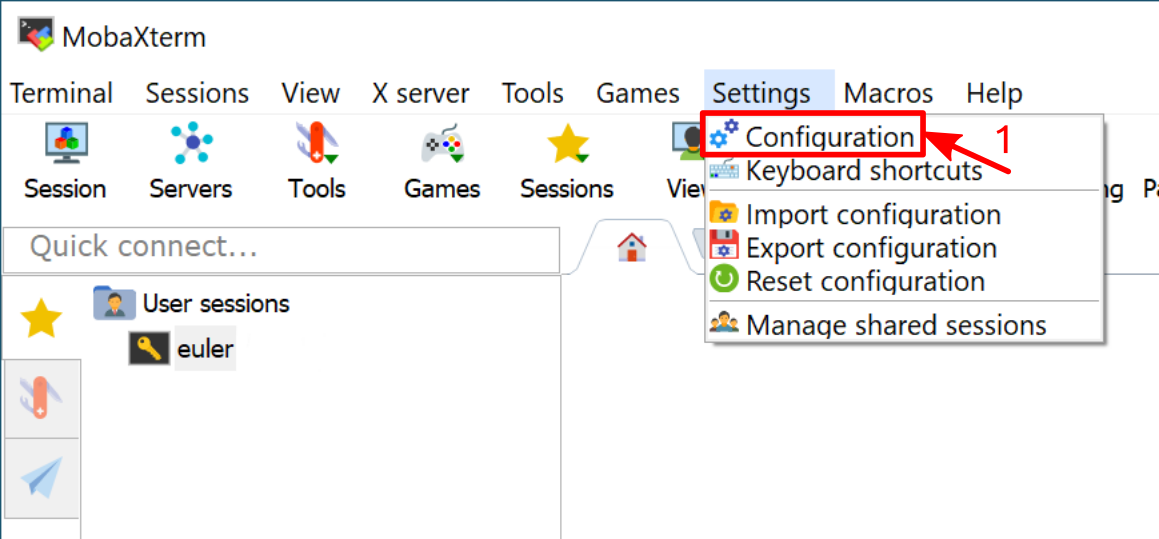
Go to Configuration:
Enable Use internal SSH agent "MobAgent" and Forward SSH agents.
Click the plus sign to select the private key:
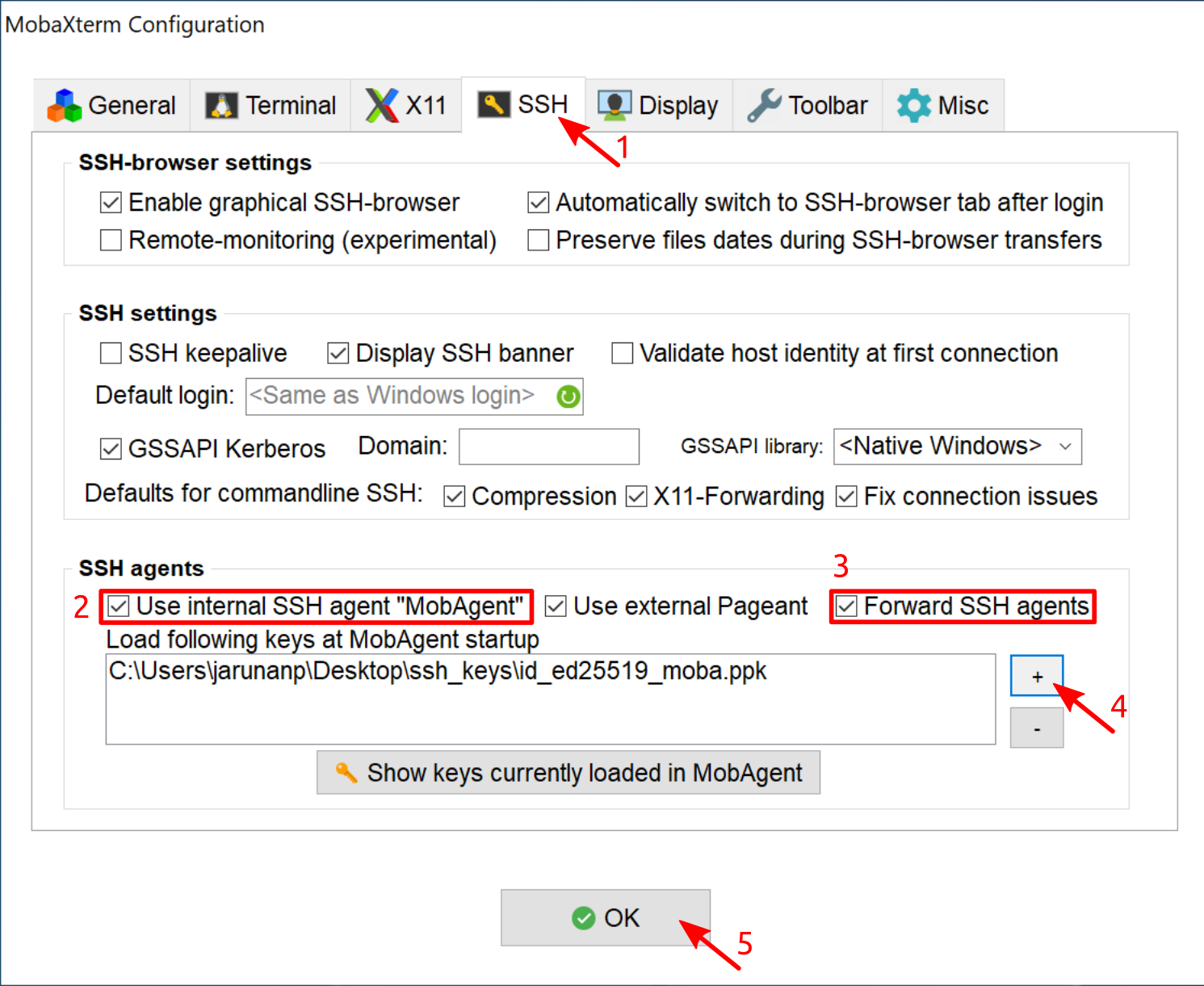
Restart MobaXterm to apply the modifications:

Enter the passphrase at the start of MobaXterm:

Then, you can start an SSH session without entering password or passphrase.